TechSupp247

All your technical support needs under one roof

Microsoft Windows

We support Windows Xp, Vista and Seven.

Browser Support

We support all browsers, you name it and we can help you with it.

TechSupp247

Got Computer problems?, Log on and chill

Hardware Support

Desktops, laptops, handhelds, printers, scanners the list is never ending.

Email Clients Support

Outlook, thunderbird, eudora, outlook express we support all.

Showing posts with label windows support. Show all posts

Jul 14, 2011

All of my disks are listed as “basic.”


Cause: Windows XP Professional supports both basic and dynamic disks, however, XP Home Edition only supports basic disks. If you are using Windows XP Professional and you want to convert the disks to dynamic disks so that you can take advantage of volume management, you can easily convert them.


Jul 11, 2011

Know the Size, Type of a File in a Folder

Windows XP gives you a number of options that can be displayed with a file.
For example, let’s say you are looking at a bunch of files in a folder. With the right configuration, you can see not only the names of the files, but also their size, type, who created them, and other details. You can easily determine what details you want to display for files in a folder.


Jul 7, 2011

My display seems distorted

Cause:

You really need a new video card. However, if you can't change the card just yet, you might resolve the problem by adjusting the hardware features of the card.

This is an easy try, so if the Issue is not solved there is no harm done.


Jun 7, 2011

Narrator reads too slowly


The Narrator feature reads text and dialog boxes that appear on your screen. If the Narrator reads too slowly, you can speed up the voice, and adjust the volume and pitch as well, by using the Voice Settings.

To adjust Voice Settings, just follow these steps:

1. Click Start--> All Programs--> Accessories--> Accessibility--> Narrator.

2. In the Narrator window that appears, click the Voice button.

3. In the Voice Settings window that appears, shown in the illustration, increase the Speed value of the voice and the volume and pitch, if you like. Click OK when you are done.


These steps can be used in Windows 7

Jun 6, 2011

I can’t create a new folder


Cause: 
Folders can be created directly on your desktop by right-clicking an empty area of the desktop and clicking New--> Folder. They can also be created within any folder by clicking File--> New--> Folder.

However, in order to create a new folder, you must actually be in a current folder, or the option does not appear on the File menu. For example, you cannot create a new folder while you are working in an application, such as Microsoft Word. Also, some folders do not allow you to create subfolders. An example is My Computer, which you can find on your Start menu, is a special folder that contains drives on your computer. If you click the File menu in My Computer, there is no option to create a new folder.

Solution:
To fix the problem, make sure you are trying to create a new folder on your
desktop or you are trying to create a new folder using the File menu in a folder that supports subfolders.

Jun 2, 2011

Display Mycomputer as Menu In Windows XP

By default, Windows XP will show Control Panel on the Start menu as a 'link'.


This means that you have to click Control Panel to open it from the Start menu. However, you can change this link behavior to a menu so that you can access Control Panel icons directly from the Start menu. When you point to Control Panel on the Start menu, a submenu will pop out showing the icons.


May 31, 2011

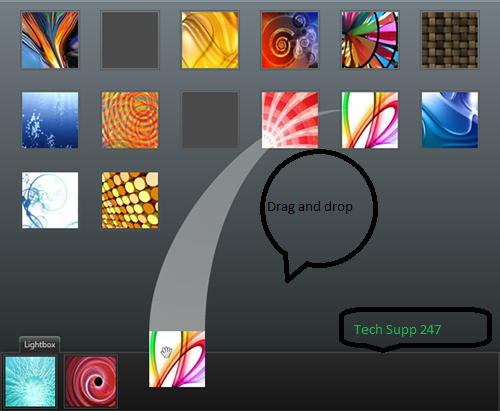
Drag and Drop Items in Start Menu

Windows XP allows you to drag and drop items on the Start menu.

For example: let's say you are working on a document. You want that document to appear on the Start menu so you can easily access it while you are working on it. No problem, just drag and drop the document on the Start button. This creates a 'shortcut' to your document, it does not actually move the document to the Start menu, but just creates a shortcut to it. If you can't drag and
drop items, then you simply need to turn on the drag and drop feature.

May 26, 2011

Change the Default Browser in Start Menu

Start Menu Tips & Tricks

Cause:

W
indows XP displays a default browser on the Start menu, which is Internet Explorer (of course). However, you can easily change this behavior so that Netscape (or any other browser setup on your computer) will appear there instead.

To make Netscape or Firefox appear on the Start menu, follow these steps:


1. Right-click on the Start button at the lower-left corner of your screen--> click Properties.


2. Click the Customize button that appears.


3. On the General tab--> make sure the Internet check box is selected--> Use the drop-down menu and select Netscape or Firefox instead of Internet Explorer--> Click OK. Netscape or Firefox should now appear on your Start menu.

May 22, 2011

Unistall Windows XP From Command Prompt

Unistall Windows XP From Command Prompt


Windows XP includes the Uninstall Windows XP option in the Add/Remove Programs tool in Control Panel if you upgraded from Microsoft Windows 98, Microsoft Windows 98 Second Edition, or Microsoft Windows Millennium Edition (Me). You can use this option to restore your previous version of Windows. To uninstall Windows XP when you are unable to start your Windows XP-based computer typically or in Safe mode, manually start the uninstallation process:

May 10, 2011

Windows Xp: Shortcut to Lock Your Computer

Desktop Shortcut to Lock Your Computer


You secure your computer by locking it whenever you're away from your desk. If you are on a domain, by pressing Ctrl+Alt+Del and then clicking Lock Computer, you can prevent unauthorized users from gaining access to your computer. Only you and members of the Administrators group on your computer can unlock it.


Feb 1, 2011

Power Management In Windows XP

 
1. Log on to your computer as an ADMINISTRATOR. Click Start, and then click Control Panel.


2. Click Performance and Maintenance.


3. Click Power Options.


4. In the Power Options Properties dialog box, on the Power Schemes tab, click the Power schemes drop-down list and select the power scheme that most closely matches how you use your computer. Different computers have different power management capabilities, so your Power Options Properties dialog box may look slightly different from the one shown here.


The Power Schemes tab in Power Options Properties dialog box


5. If available, adjust the System standby and System hibernates settings if you are not happy with the default selection. Standby reduces power usage when your computer is not in use by turning off the parts of your computer that use the most energy. It only takes a few seconds to start a computer from standby. Hibernation saves your programs and shuts your computer down completely. Hibernation uses no power, but it takes a few seconds longer to recover from hibernation when you need to use your computer again. Setting shorter delays before standby and hibernation reduces power usage.


6. On the Advanced tab, you can adjust the default behavior of the power buttons on your computer. If you have a notebook computer, you will also see settings for closing the lid of your computer and pressing the sleep button on your computer. On notebook computers, you can significantly extend the battery life by setting the When I close the lid on my portable computer option to Stand by.

7. On the Hibernate tab, select Enable hibernation if it is not already selected.


8. Click OK.

Power managements options, such as System standby and System hibernation, are a compromise between power usage and convenience. If you find it annoying when your computer goes into standby or hibernation, repeat these steps to increase the length of the delay or to disable those features completely.

Jan 26, 2011

GMER Rootkit Remover

GMER is an application that detects and removes rootkits.
It scans for:
    • hidden processes
    • hidden threads
    • hidden modules
    • hidden services
    • hidden files
    • hidden Alternate Data Streams
    • hidden registry keys
    • drivers hooking SSDT
    • drivers hooking IDT
    • drivers hooking IRP calls
    • inline hooks


    Download GMER


    Note: You should use this tool very carefully, and only after you have exhausted other options.
     

    Twitter Delicious Facebook Digg Stumbleupon Favorites More