TechSupp247

All your technical support needs under one roof

Microsoft Windows

We support Windows Xp, Vista and Seven.

Browser Support

We support all browsers, you name it and we can help you with it.

TechSupp247

Got Computer problems?, Log on and chill

Hardware Support

Desktops, laptops, handhelds, printers, scanners the list is never ending.

Email Clients Support

Outlook, thunderbird, eudora, outlook express we support all.

Showing posts with label Windows XP Support. Show all posts

Jul 14, 2011

All of my disks are listed as “basic.”


Cause: Windows XP Professional supports both basic and dynamic disks, however, XP Home Edition only supports basic disks. If you are using Windows XP Professional and you want to convert the disks to dynamic disks so that you can take advantage of volume management, you can easily convert them.


Jul 11, 2011

Know the Size, Type of a File in a Folder

Windows XP gives you a number of options that can be displayed with a file.
For example, let’s say you are looking at a bunch of files in a folder. With the right configuration, you can see not only the names of the files, but also their size, type, who created them, and other details. You can easily determine what details you want to display for files in a folder.


Jul 7, 2011

My display seems distorted

Cause:

You really need a new video card. However, if you can't change the card just yet, you might resolve the problem by adjusting the hardware features of the card.

This is an easy try, so if the Issue is not solved there is no harm done.


Jun 7, 2011

Narrator reads too slowly


The Narrator feature reads text and dialog boxes that appear on your screen. If the Narrator reads too slowly, you can speed up the voice, and adjust the volume and pitch as well, by using the Voice Settings.

To adjust Voice Settings, just follow these steps:

1. Click Start--> All Programs--> Accessories--> Accessibility--> Narrator.

2. In the Narrator window that appears, click the Voice button.

3. In the Voice Settings window that appears, shown in the illustration, increase the Speed value of the voice and the volume and pitch, if you like. Click OK when you are done.


These steps can be used in Windows 7

Jun 6, 2011

I can’t create a new folder


Cause: 
Folders can be created directly on your desktop by right-clicking an empty area of the desktop and clicking New--> Folder. They can also be created within any folder by clicking File--> New--> Folder.

However, in order to create a new folder, you must actually be in a current folder, or the option does not appear on the File menu. For example, you cannot create a new folder while you are working in an application, such as Microsoft Word. Also, some folders do not allow you to create subfolders. An example is My Computer, which you can find on your Start menu, is a special folder that contains drives on your computer. If you click the File menu in My Computer, there is no option to create a new folder.

Solution:
To fix the problem, make sure you are trying to create a new folder on your
desktop or you are trying to create a new folder using the File menu in a folder that supports subfolders.

Jun 2, 2011

Display Mycomputer as Menu In Windows XP

By default, Windows XP will show Control Panel on the Start menu as a 'link'.


This means that you have to click Control Panel to open it from the Start menu. However, you can change this link behavior to a menu so that you can access Control Panel icons directly from the Start menu. When you point to Control Panel on the Start menu, a submenu will pop out showing the icons.


May 31, 2011

Drag and Drop Items in Start Menu

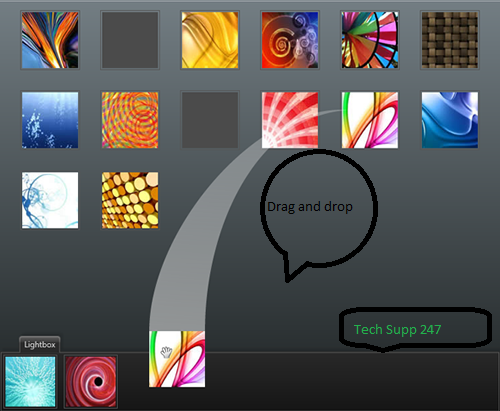
Windows XP allows you to drag and drop items on the Start menu.

For example: let's say you are working on a document. You want that document to appear on the Start menu so you can easily access it while you are working on it. No problem, just drag and drop the document on the Start button. This creates a 'shortcut' to your document, it does not actually move the document to the Start menu, but just creates a shortcut to it. If you can't drag and
drop items, then you simply need to turn on the drag and drop feature.

May 26, 2011

Change the Default Browser in Start Menu

Start Menu Tips & Tricks

Cause:

W
indows XP displays a default browser on the Start menu, which is Internet Explorer (of course). However, you can easily change this behavior so that Netscape (or any other browser setup on your computer) will appear there instead.

To make Netscape or Firefox appear on the Start menu, follow these steps:


1. Right-click on the Start button at the lower-left corner of your screen--> click Properties.


2. Click the Customize button that appears.


3. On the General tab--> make sure the Internet check box is selected--> Use the drop-down menu and select Netscape or Firefox instead of Internet Explorer--> Click OK. Netscape or Firefox should now appear on your Start menu.

May 22, 2011

Unistall Windows XP From Command Prompt

Unistall Windows XP From Command Prompt


Windows XP includes the Uninstall Windows XP option in the Add/Remove Programs tool in Control Panel if you upgraded from Microsoft Windows 98, Microsoft Windows 98 Second Edition, or Microsoft Windows Millennium Edition (Me). You can use this option to restore your previous version of Windows. To uninstall Windows XP when you are unable to start your Windows XP-based computer typically or in Safe mode, manually start the uninstallation process:

May 10, 2011

Windows Xp: Shortcut to Lock Your Computer

Desktop Shortcut to Lock Your Computer


You secure your computer by locking it whenever you're away from your desk. If you are on a domain, by pressing Ctrl+Alt+Del and then clicking Lock Computer, you can prevent unauthorized users from gaining access to your computer. Only you and members of the Administrators group on your computer can unlock it.


Apr 4, 2011

Windows XP: Send A Fax

Send A Fax In Windows XP 

To start the Send Fax Wizard, use one of the following methods:


Feb 17, 2011

Windows XP- System File Checker


How To Use System File Checker Tool In Windows XP

Windows XP has the ability to protect itself from system instability caused by 3rd party software overwriting important system files.

Feb 12, 2011

Required Or It Will Stop Working


Windows XP requires "Activation"
You must contact Microsoft with a few weeks after installation, or Windows XP will refuse to continue to work.


Feb 5, 2011

Use Briefcase Feature In Windows XP


This feature can be used when you have two or more computers to work on files, and when you need to frequently transfer files between computers by using a direct cable connection or a removable disk.

The Briefcase feature in Windows XP helps you keep your files updated by automatically synchronizing multiple copies of individual files and keeps track of the relationship between files on two or more computers.

Feb 1, 2011

Power Management In Windows XP

 
1. Log on to your computer as an ADMINISTRATOR. Click Start, and then click Control Panel.


2. Click Performance and Maintenance.


3. Click Power Options.


4. In the Power Options Properties dialog box, on the Power Schemes tab, click the Power schemes drop-down list and select the power scheme that most closely matches how you use your computer. Different computers have different power management capabilities, so your Power Options Properties dialog box may look slightly different from the one shown here.


The Power Schemes tab in Power Options Properties dialog box


5. If available, adjust the System standby and System hibernates settings if you are not happy with the default selection. Standby reduces power usage when your computer is not in use by turning off the parts of your computer that use the most energy. It only takes a few seconds to start a computer from standby. Hibernation saves your programs and shuts your computer down completely. Hibernation uses no power, but it takes a few seconds longer to recover from hibernation when you need to use your computer again. Setting shorter delays before standby and hibernation reduces power usage.


6. On the Advanced tab, you can adjust the default behavior of the power buttons on your computer. If you have a notebook computer, you will also see settings for closing the lid of your computer and pressing the sleep button on your computer. On notebook computers, you can significantly extend the battery life by setting the When I close the lid on my portable computer option to Stand by.

7. On the Hibernate tab, select Enable hibernation if it is not already selected.


8. Click OK.

Power managements options, such as System standby and System hibernation, are a compromise between power usage and convenience. If you find it annoying when your computer goes into standby or hibernation, repeat these steps to increase the length of the delay or to disable those features completely.

Jan 25, 2011

Windows XP-Disable Error Reporting


When an application crashes in Windows XP, you may receive a request to send an error report to Microsoft. These requests can become a little annoying. Also, error reports can sometimes include part of a document you were working on when the program crashed and you may feel that sending them compromises your privacy.


Jan 18, 2011

Keep Your Data Safe In Windows XP


Encrypt a file or folder: 
When you encrypt a file or folder, you are converting it to a format that can't be read by others. A file encryption key is added to files or folders that you choose to encrypt. This key is needed to read the file. Windows XP Professional makes the encryption and decryption process easy


Jan 16, 2011

Speed up Windows XP: Clean Up Disk Errors

Run once a week

Whenever a program crashes or you experience some power outage, your computer may create errors on its hard disk. Over time, the errors can slow down your computer. Luckily, the Windows operating system includes a Disk Check program to check and clean any errors on your computer and to help it running smoothly.


Installing Windows XP

Install Windows XP


Installing Windows XP can take up to two hours. To make the process more manageable, it has been broken up into several sections. When you are ready, follow the below steps to install Windows XP.


Jan 13, 2011

XP: Changing/Editing Prefetch Settings


Change settings for your prefetch folder in Windows XP.

We can do this in Regedit.


This is helpful when you want to make changes to prefetch or disable it completely. Computers may need this functionality disabled to get the system to run more efficiently.


Once the registry editor window opens, you can chnage the way prefetch behaves by making a change in the registry
Start--> Run--> Type 'Regedit'--> Enter.


In the registry editor dialog box, navigate to the value below:


HKEY_LOCAL_MACHINE\SYSTEM\CurrentControlSet\Control\Session Manager\Memory Management\PrefetchParameters


In the right side pane, look for the key named EnablePrefetcher. The value of this key represents how Prefetch will operate.


Values you can choose from:
0: Disable
1: Application Launch Prefetch
2: Boot Prefetch
3: Prefetch everything


Make the decision and type the required number of your choice in the EDIT DWORD VALUE, and click OK, and exit the registry editor and restart the computer.

Twitter Delicious Facebook Digg Stumbleupon Favorites More