TechSupp247

All your technical support needs under one roof

Microsoft Windows

We support Windows Xp, Vista and Seven.

Browser Support

We support all browsers, you name it and we can help you with it.

TechSupp247

Got Computer problems?, Log on and chill

Hardware Support

Desktops, laptops, handhelds, printers, scanners the list is never ending.

Email Clients Support

Outlook, thunderbird, eudora, outlook express we support all.

Jan 7, 2011

Manually Removing Startup Programs from Windows XP


Removing startup programs from Windows XP - the manual method to speed the start up 

 Manually removing Windows startup programs is relatively easy and straight-forward and helps speed up the start up. Here’s a step-by-step tutorial showing you how to do it.


1. Once your computer’s desktop has loaded, click on the start button and then the “Run” button on the right side of the menu.
 

2. After you have clicked on “Run”, a new window should popup - type in “msconfig” without the quotes and hit the “Ok” button.
  
3. Yet another window will pop up - this is the System Configuration Utility. You’re going to want to click on the “Startup” tab on the far right side.


At this point, you’ll see the location where you can add or remove startup programs from your PC.


You can see the Startup program name in the left column, the physical path to the file that is being executed when your computer boots up in the middle and the location within the registry where this command is stored in the right column.


4. When you have completed your removal of unnecessary startup entries, click on the “Apply” button and then “OK” at the bottom of the System Configuration Utility. 

You’ll have to reboot your PC for the changes to take effect.

Jan 6, 2011

Installing MS Office 2007 from a CD/DVD

We will assume that you will be installing Microsoft Office 2007 from the CD/DVD drive. This guide will apply to all versions of Microsoft Office 2007 as there is no noticeable difference when installing different versions of Microsoft Office 2007. The only expected difference is the applications that you can install and this is dependent on the version of Microsoft Office 2007 you have purchased. 


Diffferent Types of Computer Threats

Threats to your computer system, data, and identity come in many different forms, a few of the most common are listed as follows:
Viruses:
A virus is a self-replicating program that is designed to damage or degrade the performance of a computer. A virus is replicated by being copied or by initiating its copying to another program, computer boot sector or document. Viruses can be classified into four different categories as follows:

File Infector
A File infector virus when executed on a system will seek out other files and insert its code into them. The programs with .EXE and .COM extensions are the most commonly targeted, but a file infector virus can target any executable file.
This infection is most commonly distributed via compromised networks, over the web via drive-by, or from a corrupted media (CDRW, flash media).

Basic Hardware Setup for a Wireless Home Network

Wireless networking offers tangible benefits over traditional wired networking. We find wireless connectivity in all the devices that we use today including, cellphones, gaming systems and computers.


The first step is to choose a good Wireless Router  
Depending on your usage and considering the connectivity factor you can choose a router. There are many brands and different series of routers which come with different wireless ranges. Few popular router manufacturers are Cisco, Dlink, Linksys and Belkin


Jan 5, 2011

Gmail: Changing Default font size while composing a mail


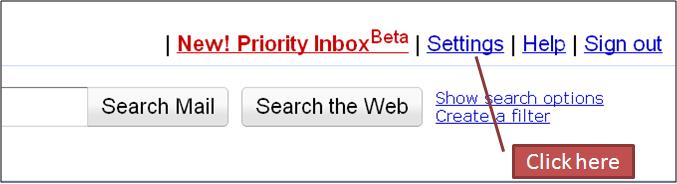
Here's what you can do to change the default Font in Gmail while composing a mail:


1. Go to "Settings" at the top of your Gmail page.


Jan 4, 2011

Ready Boost in Windows 7 to speed up performance

Windows ReadyBoost allows you to add a non-volatile USB 2.0 flash memory drive to improve memory performance on systems that have less than 1GB of memory. This is is a great feature to use if you have a computer in which a RAM upgrade is difficult or not feasible.

Windows 7 ReadyBoost is very easy to use. Once you connect a USB flash drive to your computer, Windows 7 checks to see if the performance is fast enough to work with Windows ReadyBoost. If so, you are asked if you would like to use the connected drive to speed up the performance of the Windows 7 system. You can also choose to use the complete space on the Universal Serial Bus (USB) drive or just a part of it. 


Jan 3, 2011

How to back up your files to an external hard disk drive

To back up your files to an external hard disk drive:


We often have a question about how often the data should be backed up.
 
Generally, people who use their computers occasionally (5 hours/week or less) should be backing up their data on at least a weekly basis. If you use your computer more frequently however, (more than 10 hours/week), doing it daily is probably a good idea. Another variable is the type of data you store on your computer. If you continuously work on important data, then it becomes more important to do that on a more frequent basis.


There are a couple of options available to backup the data. We can backup data to external devices and media, or on to a separate partition (provided you have a lot of space to spare), or can also use on-line backup options provided by couple of vendors. For doing this, there are 3rd party softwares available but Windows also has it's own internal utility.


The below steps show you  the steps of backing up data to an external hard drive in Windows XP using the Windows Utility.


1. Click Start--> Select Accessories--> Select System Tools--> and then click Backup.

Dec 30, 2010

Mind blowing things Windows 7 does that Vista doesn't

Mind blowing things Windows 7 does that Vista doesn't

Shake them away

Ever had 10 Notepad, two Powerpoint and 50 Outlook windows open? Want to minimize all of them except the most important one? In Windows 7, you can grab the top of the window and shake it about to scare away all of the other open windows. Simple.

A step forward in previewing

In Vista, hovering over a minimized window on the taskbar would provide a preview of the window. In Windows 7, a similar preview pops up which also gives the option to close a window (within the preview), along with a full-size 'peek'. You can also press "Win" + "T" to scroll along previews in the task-bar.


           A smaller preview, along with a full-size 'peek' with the ability to close the window

Snap into place

Simply drag your window to the left or right edge of the desktop to snap and resize the window to one half of the screen. Drag the window to the top to maximize it. A pretty neat idea made neater by the use of the keyboard shortcuts ("Win" + respective arrow keys). No longer do you have to frustratingly position the mouse at the edge of the window to resize it.


Dec 29, 2010

Technology update- UEFI


The Basic Input/Output System (BIOS) served as the OS-firmware interface for the original PC-XT and PC-AT computers. BIOS has however not been completely modernized even with the advancement of the PC market and technology. The Unified EFI (UEFI) specification (previously known as the EFI specification) defines a similar interface between an operating system and platform firmware. UEFI is independent of the processor architecture and it defines a similar OS-firmware interface, known as "boot services" and "runtime services".

As per
Mark Doran, head of the UEFI Forum ,UEFI is expected to predominate in new PCs by 2011.

UEFI is free from architectures limitation, as the technology scales across platforms (server, desktops, mobiles, handhelds). 

For the users' perspective, the advantages of UEFI machines include fast boots (less than 5 seconds) as well and resume response. They could feature a high-resolution Graphics User Interface in pre-boot environment and the systems will be able to boot from large (2.2TB or higher) disks. In addition, Users may also be abl
e to access Outlook data in seconds even when their notebook is off. 

Dec 28, 2010

Process Explorer utility

Task manager is less elaborate in providing information and details on processes.

However, there's a very good utility called as Process Explorer, that simplifies the process and provides you a tree based format viewing.

This utility becomes useful in looking at the CPU usage, tracking the processes and malwares. 

Process Explorer shows you information about which handles and DLLs processes have opened or loaded. The Process Explorer display consists of two sub-windows.

The top window always shows a list of the active processes, including their owning accounts. The  bottom window  information is dependent on the mode that Process Explorer is in: if it is in handle mode you'll see the handles that the process selected in the top window has opened; if Process Explorer is in DLL mode you'll see the DLLs and memory-mapped files that the process has loaded. 

Process Explorer also has a powerful search capability that will quickly show you which processes have particular handles opened or DLLs loaded.


It can thereby help in tracking down DLL-version problems and serve as a handy and intuitive tool to provide a good idea and information into the way Windows and applications work.


Twitter Delicious Facebook Digg Stumbleupon Favorites More