TechSupp247

All your technical support needs under one roof

Microsoft Windows

We support Windows Xp, Vista and Seven.

Browser Support

We support all browsers, you name it and we can help you with it.

TechSupp247

Got Computer problems?, Log on and chill

Hardware Support

Desktops, laptops, handhelds, printers, scanners the list is never ending.

Email Clients Support

Outlook, thunderbird, eudora, outlook express we support all.

Showing posts with label enable. Show all posts

Jul 25, 2011

Enable Save Tabs Upon Exit


In order to get your tabs and windows back from the previous session, you should close Firefox from the menu: At the top of the Firefox window, click on the Firefox button (File menu in Windows XP) and then click Exit. If you close each window or tab, only the final window or tab that you closed will be available when you restart Firefox.Prior versions of Firefox would ask “Do you want Firefox to save your tabs for the next time it starts?” when exiting the program. FF4 no longer has this feature enabled by default. Here is how to turn it back on.

May 31, 2011

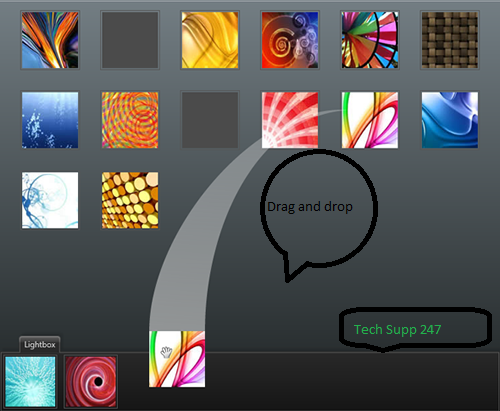
Drag and Drop Items in Start Menu

Windows XP allows you to drag and drop items on the Start menu.

For example: let's say you are working on a document. You want that document to appear on the Start menu so you can easily access it while you are working on it. No problem, just drag and drop the document on the Start button. This creates a 'shortcut' to your document, it does not actually move the document to the Start menu, but just creates a shortcut to it. If you can't drag and
drop items, then you simply need to turn on the drag and drop feature.

Apr 17, 2011

Enable or Disable Search from Internet Explorer


How to Enable or Disable Search from Internet Explorer 8 Address Bar 
Steps to Follow

  • Open Internet Explorer
  • Click on the Tools Menu Bar
  • Select Internet Options.
  • Click on the Advanced tab, and under Settings, scroll down to the Search from the Address bar section.

Feb 18, 2011

Speed Up Windows XP - Enable DMA


Speed Up Windows XP - Enable DMA on all Drives

                                   Windows XP has a hard drive feature call Direct Memory Access, or DMA. This allows data from your drives to transfer directly from the device into memory without passing first through the CPU, thereby reducing the workload on your processor. To speed up your computer, you can make sure DMA is enabled for all of your drives (including CD/DVD drives).


Twitter Delicious Facebook Digg Stumbleupon Favorites More